How to Add Extended Protection to your Booking in myMSC
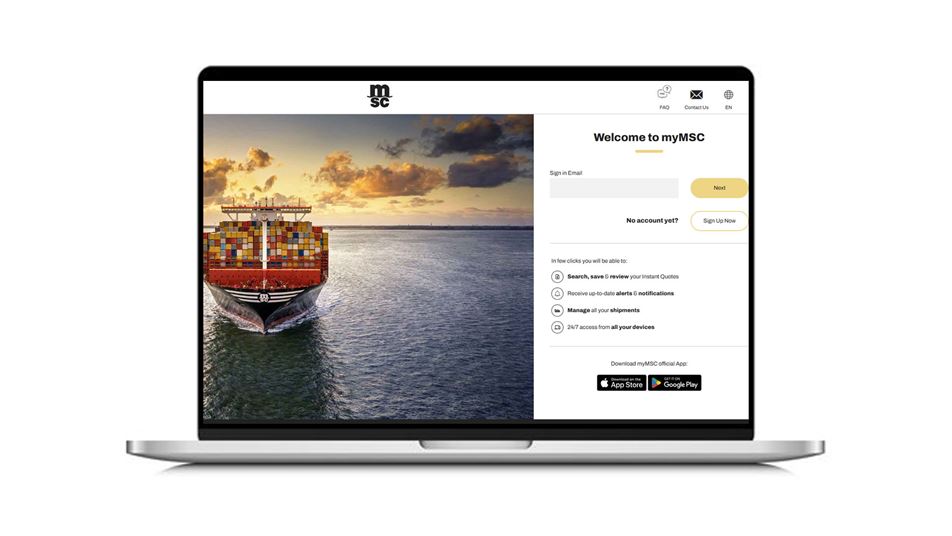
Step 1: Log in to myMSC
Enter your credentials and log in to your account. If you do not have one, you can create it in a few simple steps!
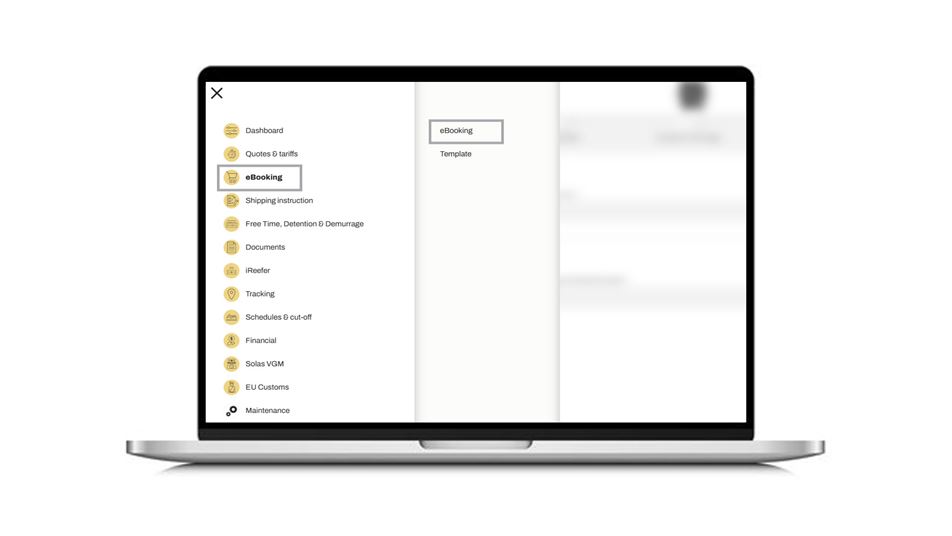
Step 2: Create your eBooking
Click on the eBooking option on the menu and insert the information for your desired shipment.
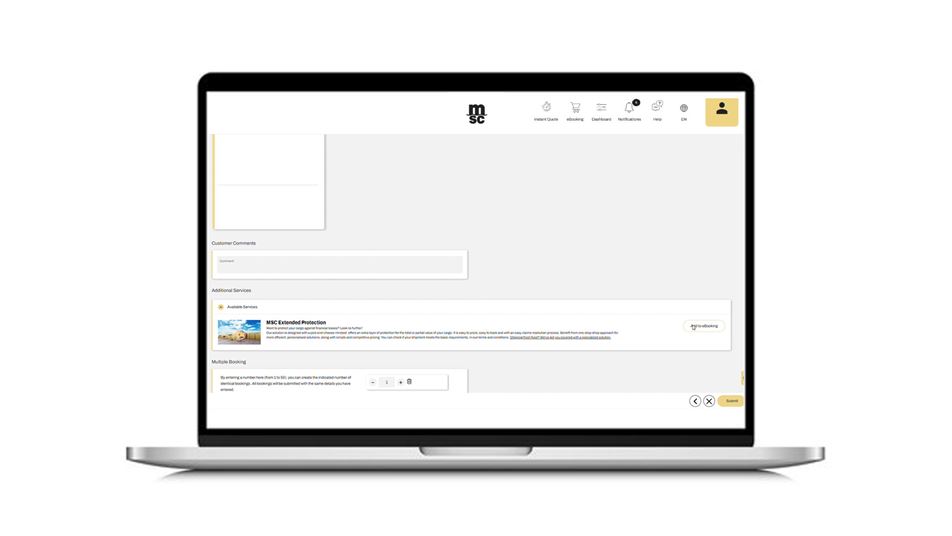
Step 3: Add EPR to your Cargo at the Summary Stage
At the summary stage of your eBooking, you can find the option to include MSC Extended Protection in the additional services section. Simply click on "Add to eBooking" to start configuring the solution to your needs.
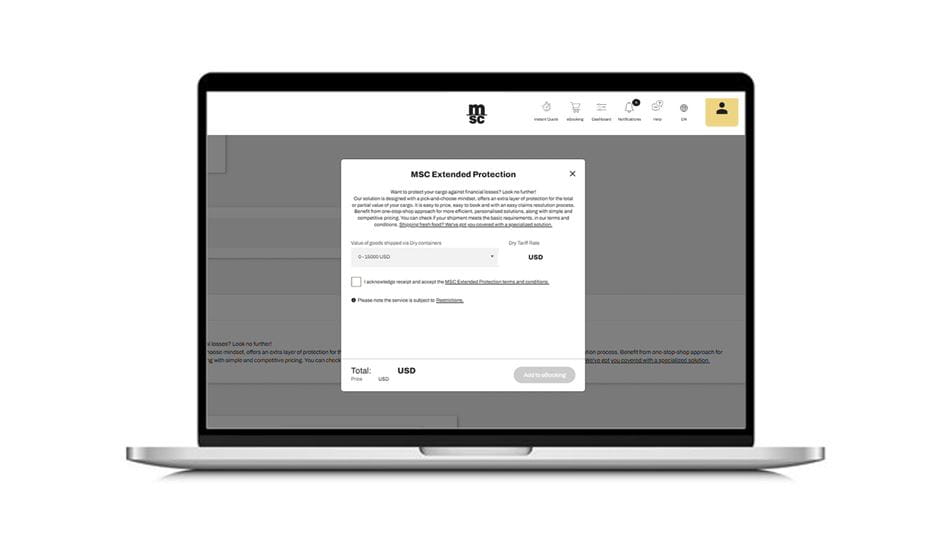
Step 4: Select the Cargo Value you Wish to Protect and Accept the Corresponding EPR Tariff
Select the value range of the cargo you wish to protect. Then accept the EPR tariff and the EPR terms and conditions by ticking the corresponding box.
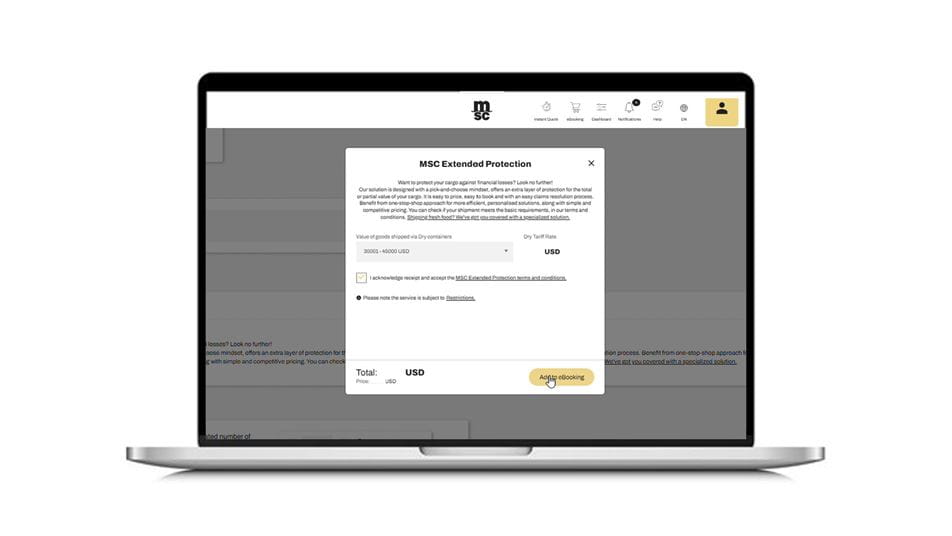
Step 5: Confirm and Finalize your Cargo Protection Plan
Click “Add to eBooking” on the pop-up window to finalize your request. Your cargo protection is now all set and you may proceed with arranging your cargo for shipping.